Competitor Price Intelligence User Guide
A user guide for merchandising, pricing and e-commerce teams.
- Covers: Competitor Price Match (version 2.6.1) and Price Comparison (version 2.0.2)
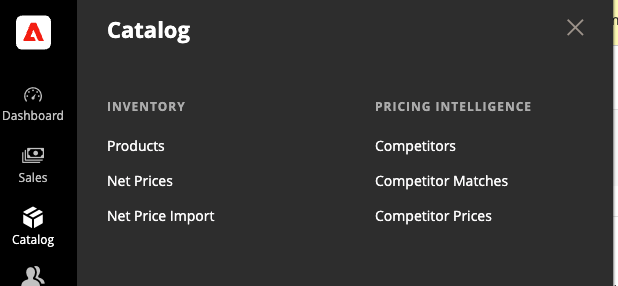
- Where to find it in the admin: Catalog > Pricing Intelligence
- Published: October 2026, prepared by objectsource
What this gives you
Two modules work together to answer one question: "How does our price compare with our competitors, and can we show customers when we are cheaper?"
| Module | What it does for you |
|---|---|
| Competitor Price Match | Finds the same products on competitor websites, records their prices, and gives you screens to check, correct and monitor all of it. |
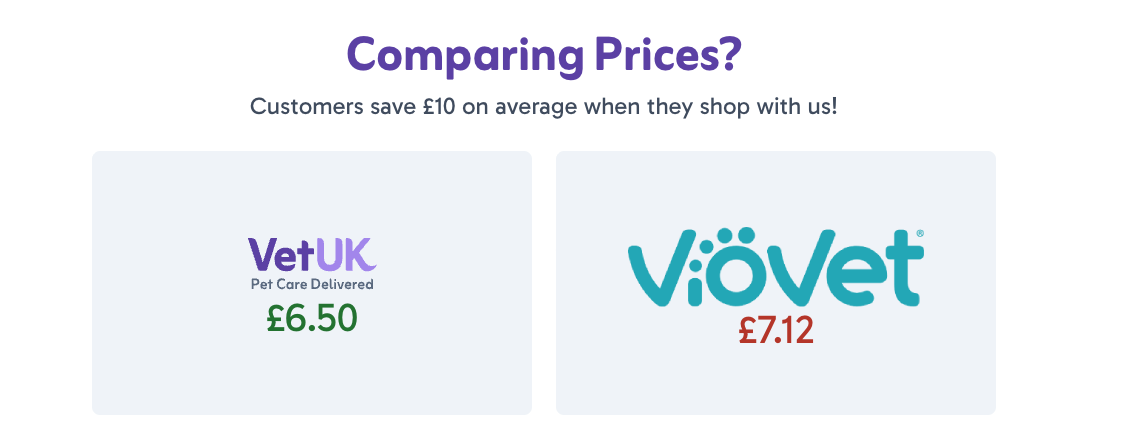
| Price Comparison | Shows a small "compare our price" panel on your product pages, so shoppers can see that we are cheaper than the competitors listed. |
You do not need to enter competitor prices by hand. The system finds them, checks them, and keeps them up to date. Your job is to review anything it is unsure about and to keep an eye on the results.
How it works at a glance
| 1. FIND | 2. CHECK | 3. PRICE | 4. SHOW |
|---|---|---|---|
| Look for each product on competitor sites | Decide how sure we are it is the same product | Visit each matched competitor page and read the price | Display the prices on the product page |
| Competitor Matches screen | Matched / Review / No Match | Competitor Prices screen | Price Comparison panel on the website |
- Find. For every enabled, visible product, the system searches the competitors it knows about and looks for the same product.
- Check. Each result is given a status: Matched, Review or No Match (explained in Matching products to competitors).
- Price. Only Matched products have their competitor page visited and the price read. This happens automatically on a schedule, or whenever you ask for it.
- Show. On the storefront, the product page shows the competitor prices that are higher than ours.
Products only get a competitor price once they are Matched. Anything in Review waits for a person to confirm it first. This protects you from showing a price for the wrong product.
Finding your way around
Everything is under Catalog > Pricing Intelligence, which has three screens:
| Screen | What it is for |
|---|---|
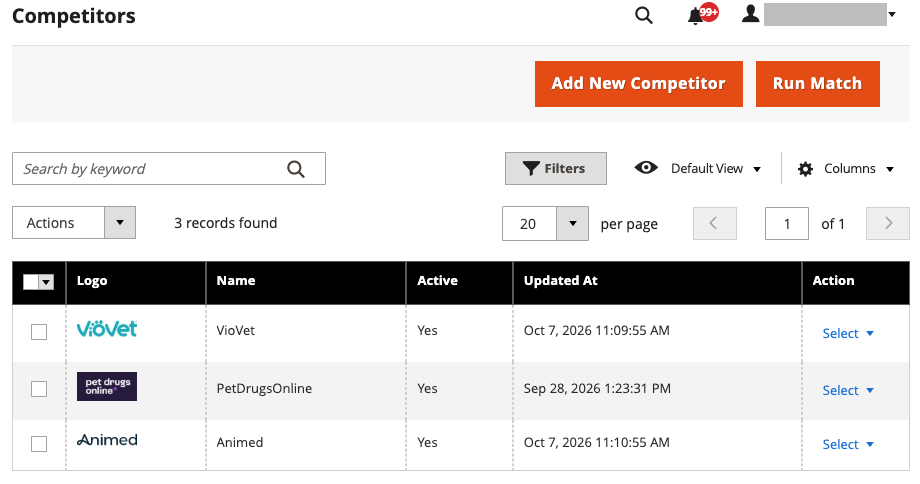
| Competitors | The list of competitors, with their names and logos. |
| Competitor Matches | Every product-to-competitor match, with its status. Review and correct matches here. |
| Competitor Prices | The prices found on competitor pages, next to our own price. |
Who can do what
Access is controlled in System > Permissions > User Roles. There are four permissions:
| Permission | Lets someone |
|---|---|
| Competitors | See and edit the competitor list. |
| Competitor Matches - View | See the matches screen and export it. |
| Competitor Matches - Edit and Run | Change matches and start new matching runs. |
| Competitor Prices - View and Run | See the prices screen and start price checks. |
If someone clicks an action and sees "access denied", it is almost always a missing permission. Ask an administrator to update their role.
Competitors
Catalog > Pricing Intelligence > Competitors
This is a simple list of the competitors you track. Each competitor has:
| Field | What it means |
|---|---|
| Name | The competitor's name. It must match the name used in the match results (capital letters and extra spaces do not matter). |
| Logo | The logo shown on your product pages next to the competitor's price. |
| Active | Switch off to stop the logo being shown. |
| Requires Browser | Turn on only for competitor sites that cannot be read in the normal way. Your objectsource contact will tell you if a competitor needs this. |
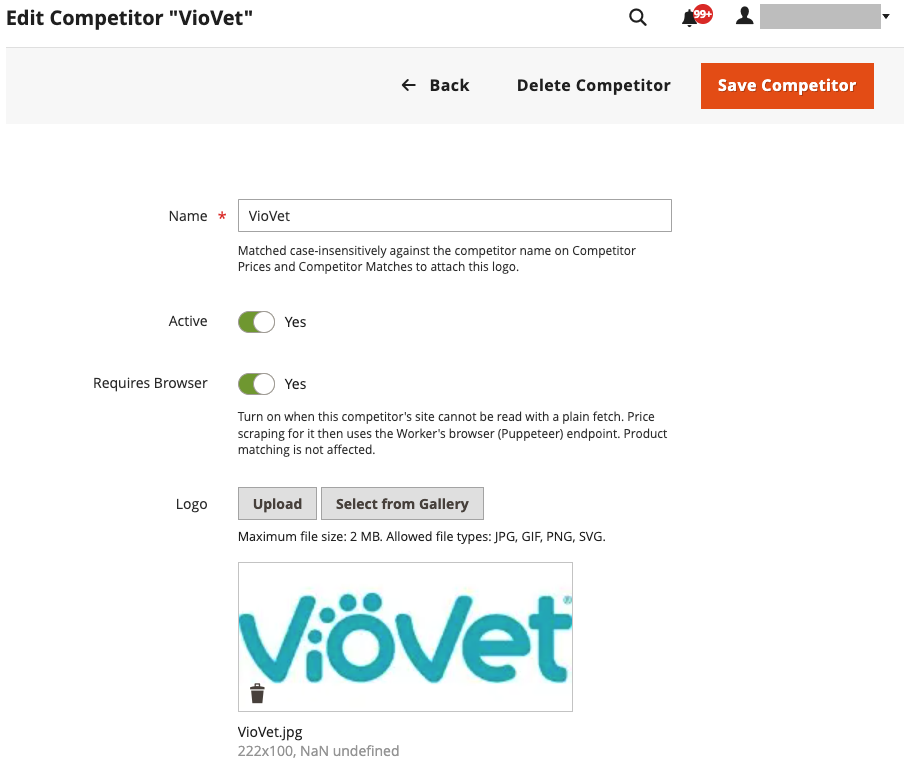
:::tip Always upload a logo The product page panel shows the competitor's logo beside their price. If a competitor has no logo, the shopper sees a price with no name, which is confusing. :::
Running a match for specific competitors
You can tick one or more competitors in this list and choose an action from the Actions menu:
- Run Match: look for every enabled, visible product at the ticked competitors (this is a long process and needs careful consideration).
- Rematch Unmatched/Review: look again, but only for products that still need a decision at the ticked competitors.
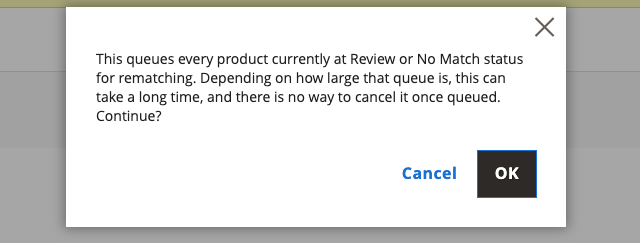
Both ask you to confirm first, because a large run cannot be cancelled once it has started.
There is also a Run Match button at the top of the page, which covers all competitors.
Matching products to competitors
Catalog > Pricing Intelligence > Competitor Matches
What you will see
Each row is one of our products at one competitor. If you have three competitors, a product can have up to three rows.
| Column | Meaning |
|---|---|
| SKU | Our product. Click to open it on our website. |
| Product Name / Brand | Our product details. |
| Competitor | Which competitor this row is about. |
| Competitor URL | The competitor's page for what the system thinks is the same product. Click to open it. |
| AI Score | How confident the system is that it is the same product (0 to 100). |
| Status | The outcome (see below). |
| Manual Override | Shows "Yes" if a person has made the decision, so the system will not change it. |
| Reason | The system's own explanation, for example "Different brand". Usually the quickest way to understand a result. |
| Updated At | When the row was last refreshed. |
Two further columns, Competitor SKU and Vector Score, are hidden by default. You can switch them on from the Columns menu.
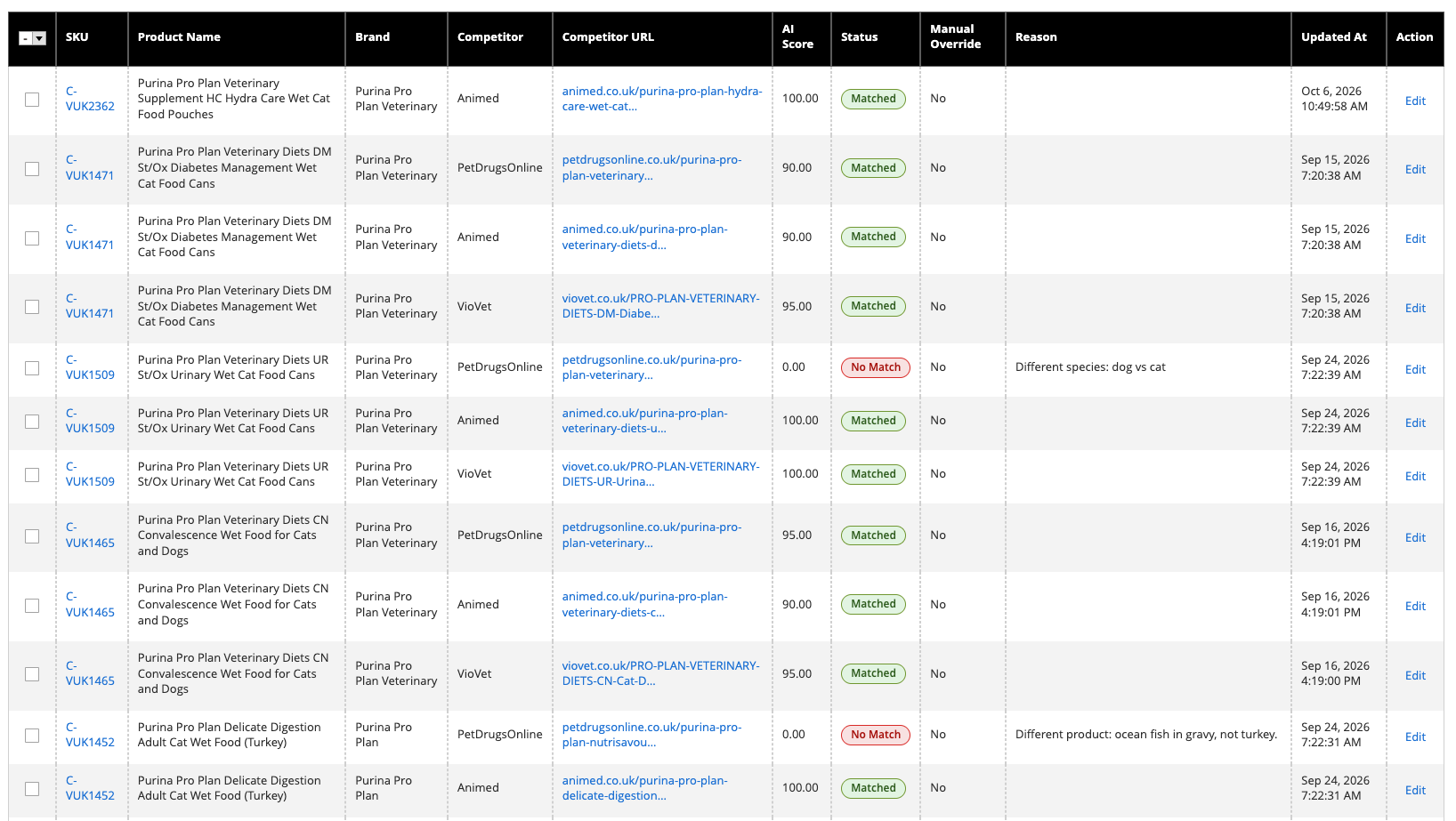
The three statuses
| Status | Colour | What it means | What happens next |
|---|---|---|---|
| Matched | Green | The system found the same product and is confident (by default, a score of 90 or more). | Its price is collected. |
| Review | Orange | It looks like the same product, but the system is not sure enough. | Waits for you. No price is collected until you confirm it. |
| No Match | Red | The system decided this is not the same product, or found nothing. The Reason says why. | Nothing. No price is collected. |
It is normal to see a lot of No Match results, especially early on. Competitors do not stock everything, and some competitors have only been partly scanned. This is not a fault.
Reviewing and correcting a match
This is the most important regular task.
- Filter the screen to Status = Review.
- For a row, open both links: the SKU (our page) and the Competitor URL (their page).
- Compare them. Check brand, product name and especially pack size or weight.
- Click Edit on the right of the row, then:
- If it is the same product, set Status to Matched.
- If it is not, set Status to No Match.
- If the competitor URL is wrong but the competitor does sell the product, paste in the correct Competitor URL and set Status to Matched.
- Save.
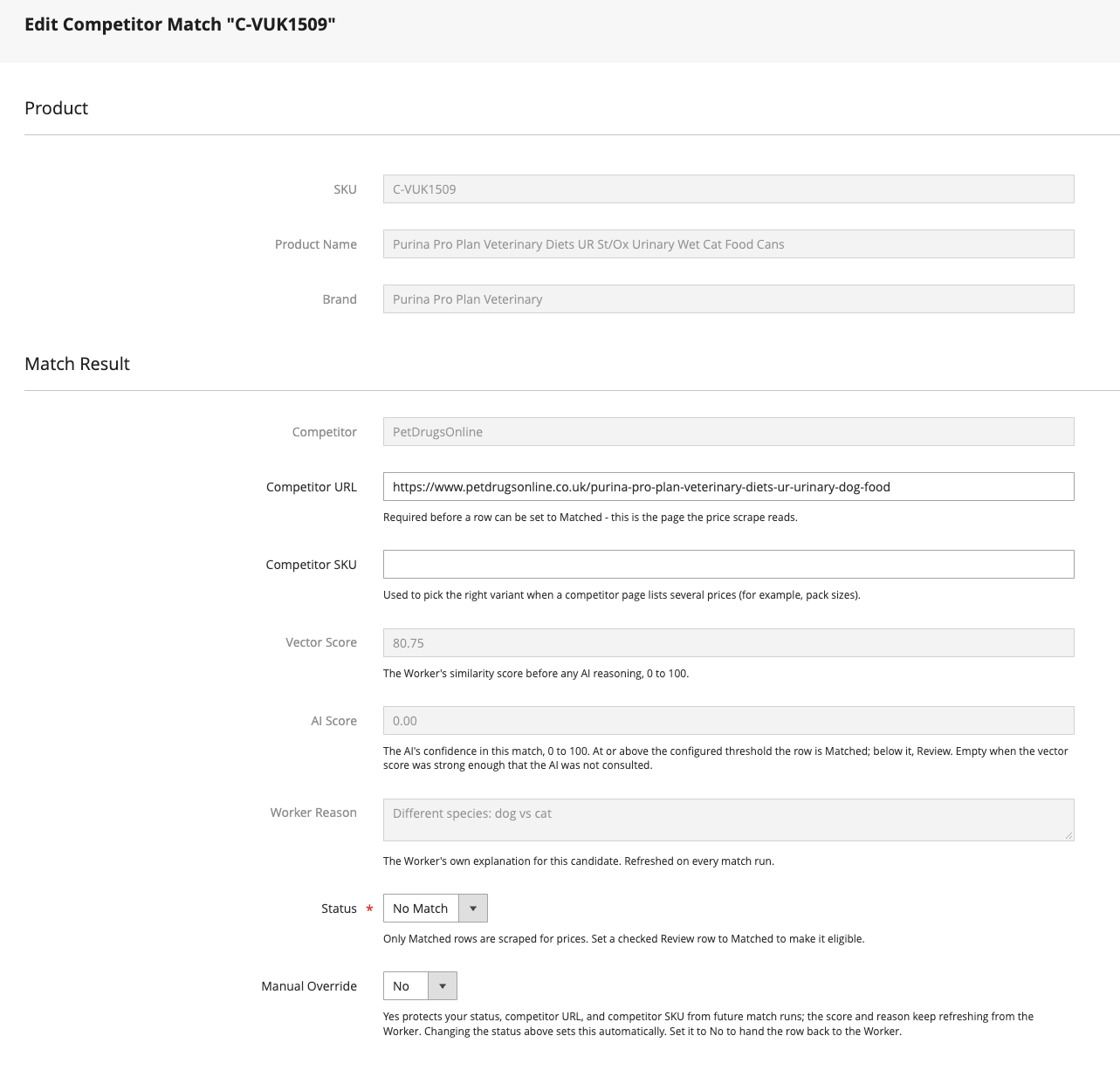
Your decision is protected. When you change a status, the row is marked Manual Override. Later matching runs will keep updating the score and reason for information, but will not change your status or URL. If you want to hand a row back to the system, set Manual Override back to No.
Working on many rows at once
Tick the rows you want, then use the Actions menu:
| Action | What it does |
|---|---|
| Set Status: Matched / Review / No Match | Changes all the ticked rows. Rows with no competitor URL cannot be set to Matched, and you are told how many were left out. |
| Re-run Match | Asks the system to look again at the products behind the ticked rows. |
| Scrape Prices | Collects competitor prices for the ticked Matched rows right now, instead of waiting for the next scheduled run. Handy straight after you have confirmed a match. |
| Export CSV | Downloads the ticked rows as a spreadsheet file. |
| Delete | Removes the ticked rows (see the warning below). |
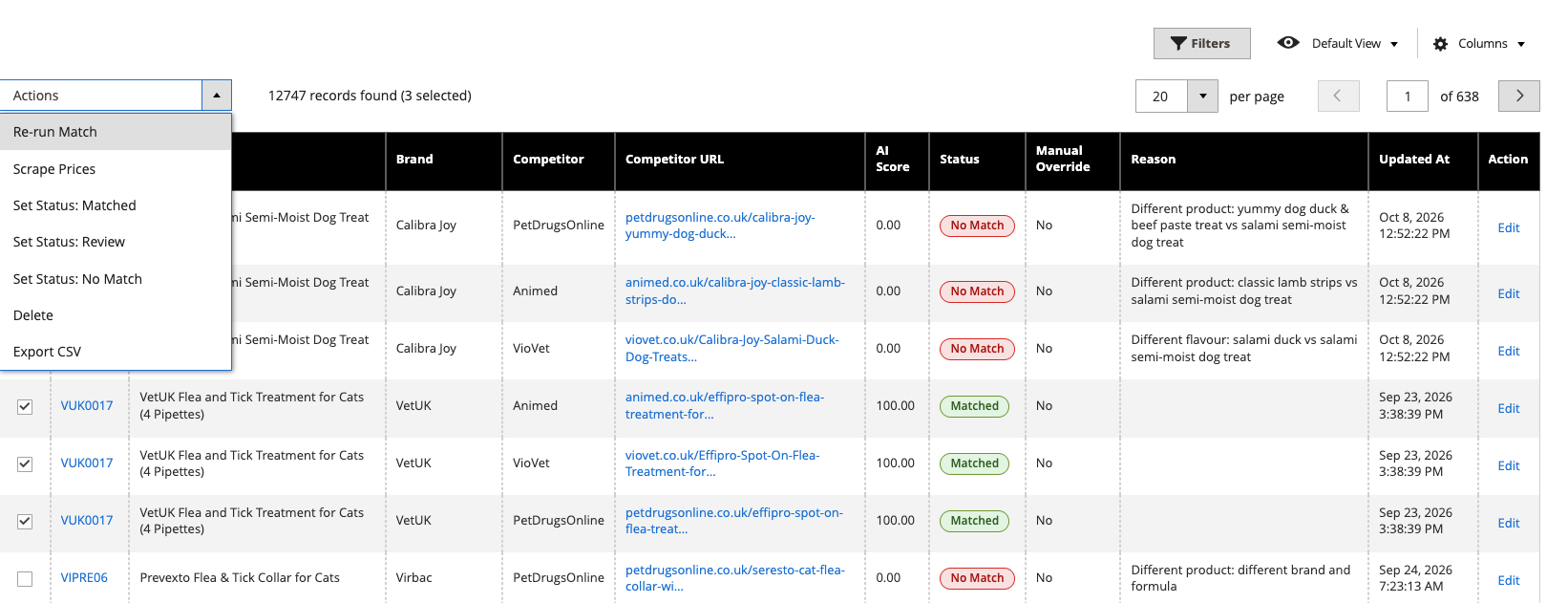
A few things worth knowing:
- Re-run Match works per product, not per row. The system always looks at all competitors for a product, so every row for that product is refreshed. If you tick five rows that all belong to one product, only one product is re-run, and you are told so.
- Scrape Prices works per row. Each ticked Matched row is one competitor page. Review and No Match rows are skipped, and you are told how many.
- Delete is not a way to reject a match. If the product is still in your catalogue, the row will come straight back on the next run. To reject a match permanently, set it to No Match. Use Delete only for things that will not return, such as a competitor you have stopped tracking.
- Search tip: ticking the box in the column header selects everything matching your current filter, not just the visible page. Filtering to one competitor and Review makes large clear-downs quick.
Starting a run
| Button | Where | What it does |
|---|---|---|
| Run Match | Competitors screen | Looks for every enabled, visible product across all competitors. |
| Rematch Unmatched/Review | Competitor Matches screen | Looks again only at products that are not yet matched anywhere or still have a Review row. |
Both ask you to confirm. They add work to a queue and cannot be cancelled once started, so avoid running them during busy trading periods if your catalogue is large. Results appear in the grid as the queue is worked through, so refresh the page after a while.
Automatic matching of new products
When a new product is created, or a product's SKU, name or brand is changed, the system automatically queues it for matching if it has never been matched before. This also applies to new products added through a bulk import. Ordinary edits such as price, stock or description changes do not trigger anything.
This can be switched off in the settings (see Settings).
Competitor prices
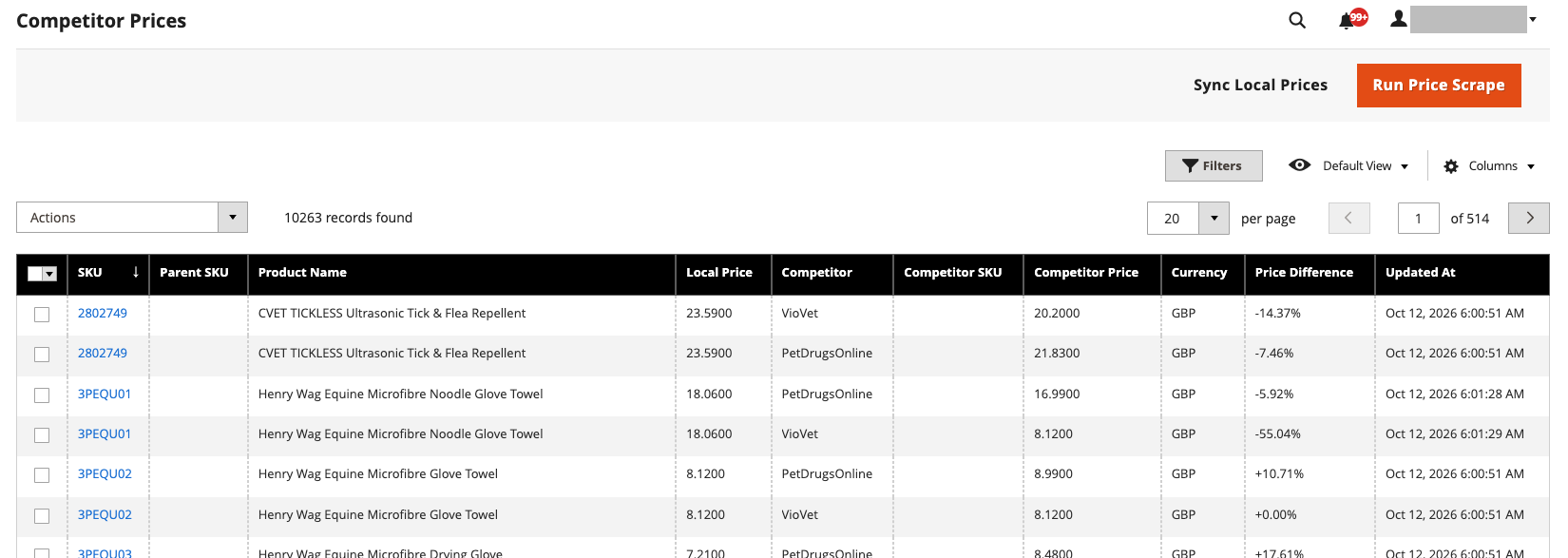
Catalog > Pricing Intelligence > Competitor Prices
What you will see
| Column | Meaning |
|---|---|
| SKU / Product Name | Our product. |
| Parent SKU | Filled in for variations of a configurable product (for example, different pack sizes). It shows the main product the variation belongs to. |
| Local Price | Our price. See "Which price is ours?" below. |
| Competitor | Who the price comes from. |
| Competitor Price | The price on the competitor's page. |
| Currency | The currency of the competitor price. |
| Price Difference | The gap between the two prices. |
| Updated At | When this price was last checked. |
Which price is ours?
The Local Price is the price a logged-out visitor would see on our website today, including VAT, after any special prices or catalogue discounts. That is the fairest comparison with a competitor's public page. If you compare the Local Price with your storefront, they should agree to the penny while you are logged out.
How prices are collected
- Only Matched rows are checked. A product matched at three competitors gets three prices.
- Automatically, on a schedule (set in the settings, see Settings).
- On demand, using the Run Price Scrape button on this screen, or Scrape Prices on the Competitor Matches screen.
- Products with variations (such as different pack sizes) are priced one variation at a time, matching each of our variations to the competitor's.
- If a competitor sells it as a single line, one price is recorded against the main product.
What happens when something goes wrong
The system is deliberately cautious:
- A failed check never wipes or changes the last known price. The old price stays until a new check succeeds.
- Temporary problems (the competitor's site is busy or slow) are retried automatically a limited number of times.
- Permanent problems (the page has been removed, or the site blocks access) are noted for attention and not retried.
- If a page lists several pack sizes and the system cannot tell which one is ours, it records nothing rather than guess.
- If a competitor does not sell a particular variation, there is simply no row for it.
To tell whether a price is stale, look at Updated At. If it has stopped moving, the price is not being refreshed.
Keeping our own price up to date
The Local Price is a snapshot. After you change a product's price, you can refresh it without waiting for the next competitor check:
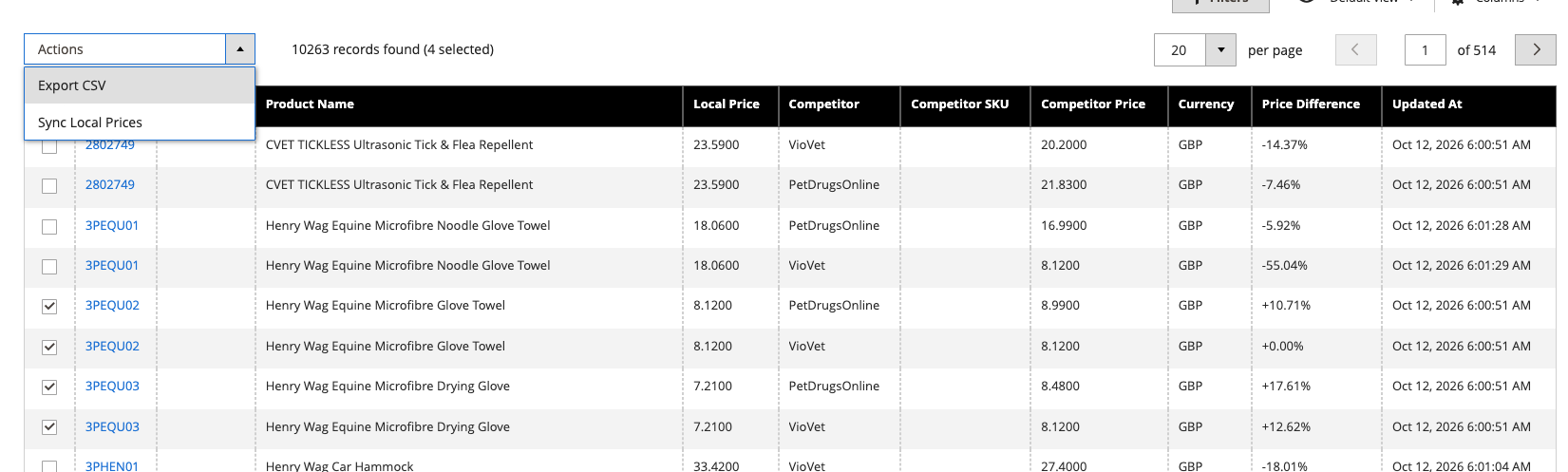
- Click Sync Local Prices at the top for every row, or tick rows and choose Sync Local Prices from the Actions menu for just those.
- This happens straight away and does not contact any competitor or change any competitor price.
- A product that currently cannot be priced (for example, it is disabled) keeps its previous Local Price.
- It also runs by itself every 6 hours.
Exporting
Tick rows and choose Export CSV from the Actions menu to download a spreadsheet of exactly what you selected. Nothing is changed by an export.
Price Comparison on the product page
The Price Comparison module is what shoppers see. It has no admin screens of its own. It reads the confirmed prices collected above and displays them on the product page.
What the shopper sees
Below the price and add-to-basket area, a panel appears with:
- A title and short message. For example, "Compare our price". You can edit this (see below).
- Our price, next to our logo, including VAT.
- A rotating display of competitor prices, each with the competitor's logo. It changes about every four seconds and pauses while the shopper's mouse is over it.
When the panel appears, and when it does not
The panel is hidden completely unless there is something worth showing. A competitor's price appears only when all of these are true:
| Rule | Why |
|---|---|
| The match is Matched (not Review or No Match). | We only show prices we have confirmed are for the same product. |
| A price has actually been collected. | There is nothing to show otherwise. |
| The competitor's price is in the same currency as our store. | Prices are never converted. |
| The competitor's price is higher than ours. | The panel is there to show you are cheaper. A competitor who is the same price or cheaper is left out. |
If no competitor passes these tests for a product, shoppers see no panel on that page. Nothing looks broken or empty.
The panel may disappear from a product when a competitor drops below our price, or when someone changes a match from Matched to Review or No Match. This is the system working as intended.
Changing the title and message
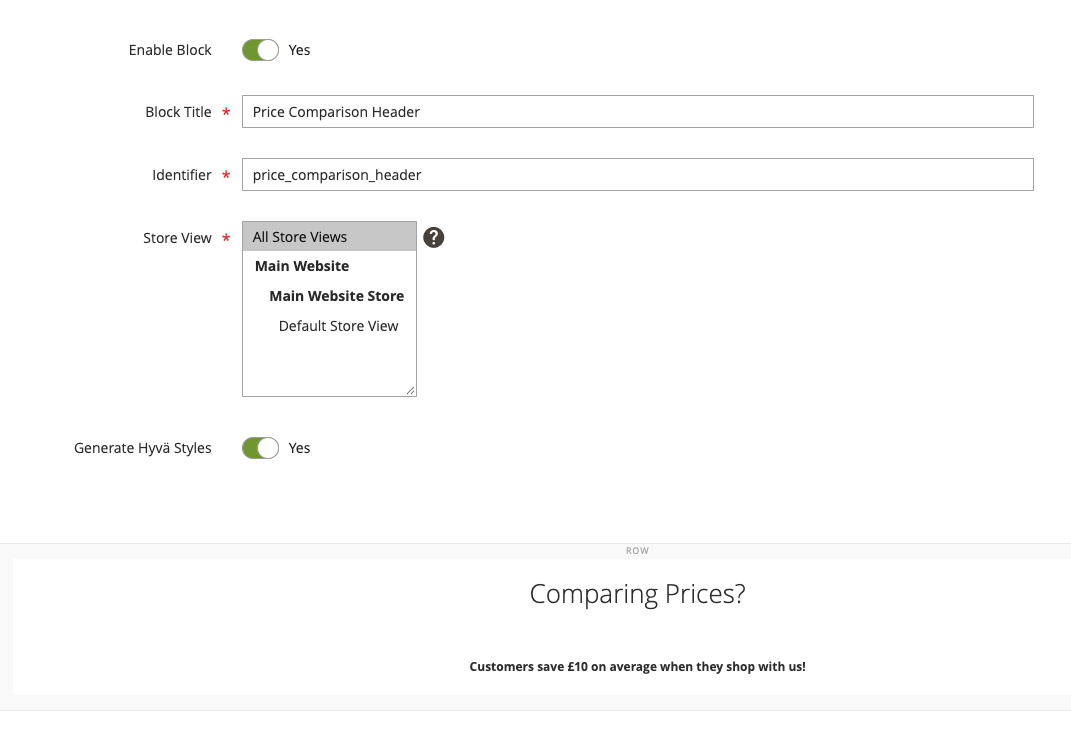
The words above the prices are an ordinary content block.
- Go to Content > Blocks.
- Find the block with the identifier price_comparison_header.
- Edit the text as you would any other content block and save.
The change appears on the next page load, once the website cache has been refreshed.
Switching the panel on or off
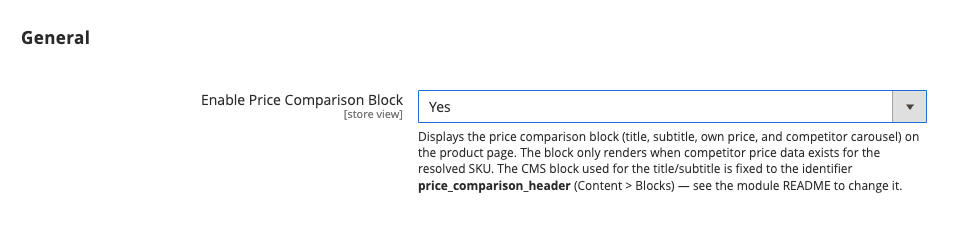
Go to Stores > Configuration > Objectsource > Price Comparison > General and set Enable Price Comparison Block to Yes or No.
How quickly changes appear
When a new price is collected for a product, that product's page is refreshed automatically. You do not need to clear any cache. Changes to the title block or the on/off setting may need the cache cleared by your administrator.
Settings
Stores > Configuration > Objectsource > Pricing Intelligence
Most teams will only touch a few of these. The connection settings are normally set up once by objectsource.
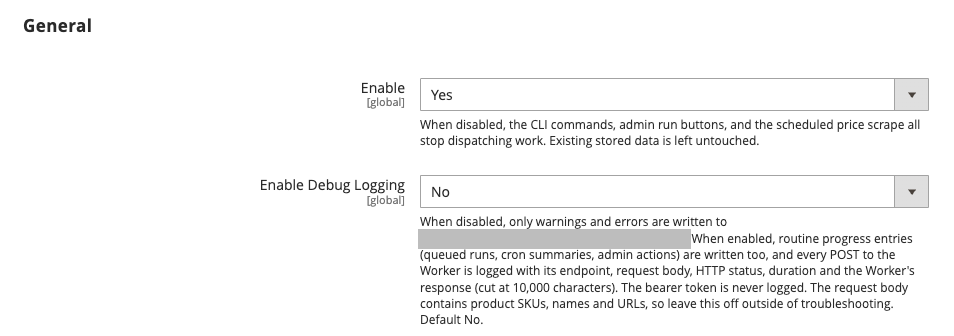
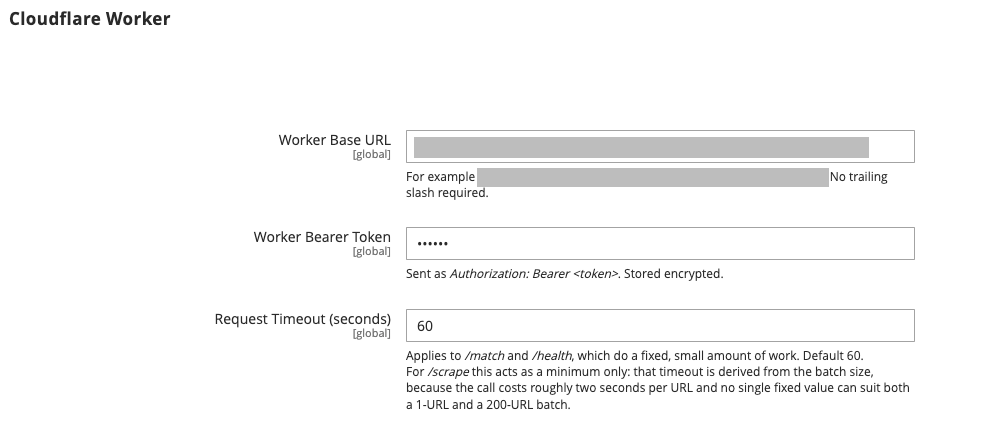
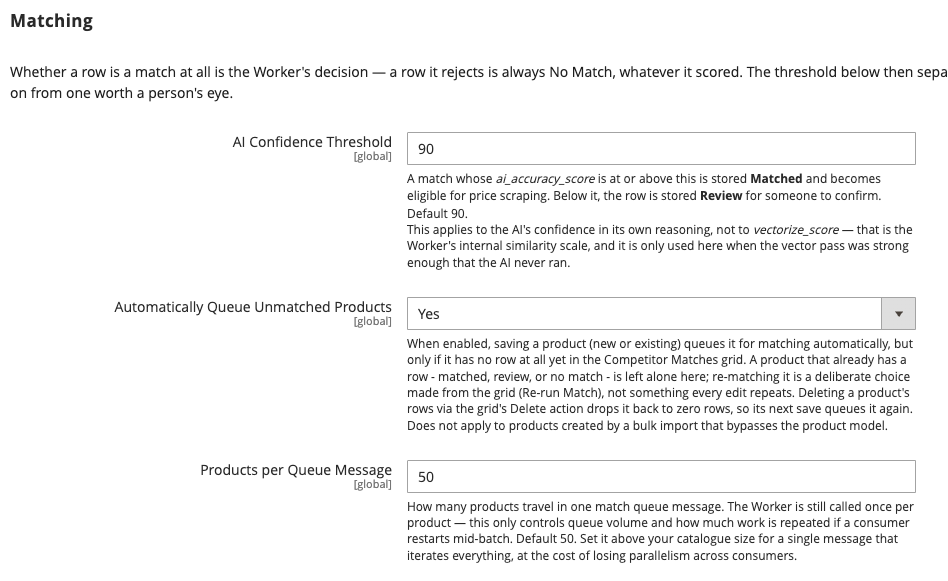
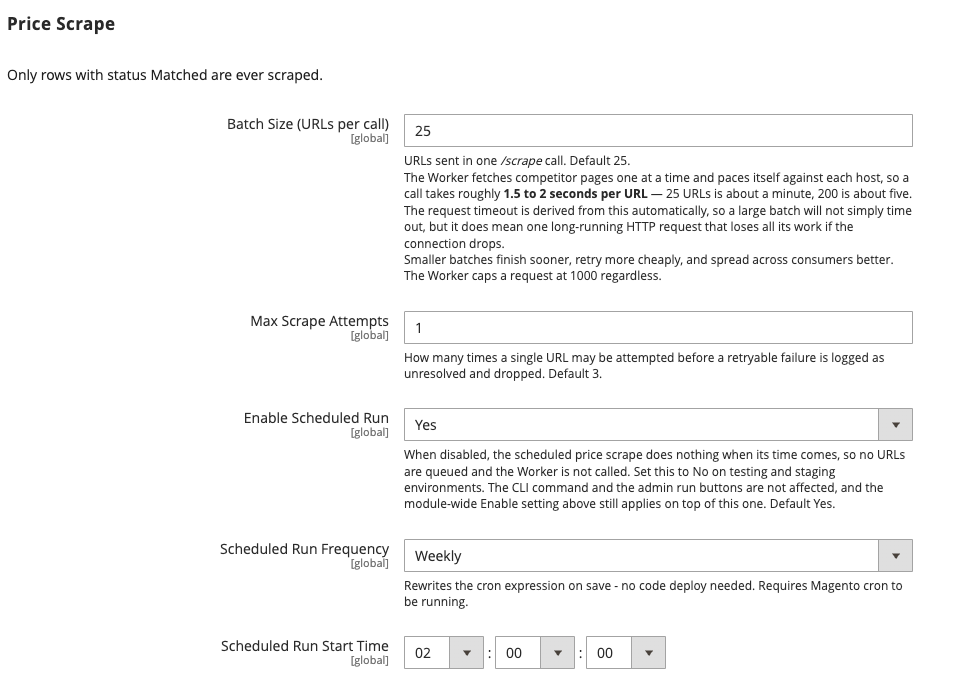
| Group | Setting | What it does | Default |
|---|---|---|---|
| General | Enable | Master switch for the whole feature. | Yes |
| Enable Debug Logging | Records extra detail for troubleshooting. Leave off unless objectsource asks you to turn it on. | No | |
| Cloudflare Worker | Worker Base URL / Bearer Token | The connection to the matching and price service. Set by objectsource. Nothing runs until these are filled in. | None |
| Request Timeout | How long to wait for the service. | 60 seconds | |
| Matching | AI Confidence Threshold | The score at or above which a match counts as Matched rather than Review. Lower it if too much lands in Review and your checks show the matches are reliable. | 90 |
| Automatically Queue Unmatched Products | Match new products automatically (see Automatic matching of new products). | Yes | |
| Products per Queue Message | Technical tuning. Leave as is. | 50 | |
| Price Scrape | Batch Size | Technical tuning. Leave as is. | 25 |
| Max Scrape Attempts | How many times a failing page is tried before giving up. | See the field in the admin | |
| Enable Scheduled Run | Whether the automatic price check runs. Set to No on test or staging websites so they do not contact real competitor sites. | Yes | |
| Scheduled Run Frequency / Start Time | How often and when the automatic price check runs. Changes take effect when saved. | Check the field in the admin |
The automatic refresh of Local Price (every 6 hours) is fixed and is not affected by these settings.
Suggested routine
Daily or as needed
- After adding new products, wait for them to be matched automatically, then check the Review filter.
Weekly
- Clear down the Review queue (see Matching products to competitors).
- Spot-check two or three Matched prices by opening the competitor link and comparing.
- Compare one Local Price with the storefront while logged out. They should be identical.
- Glance at Updated At on the Competitor Prices screen. Prices that have not moved for a long time suggest a problem.
Monthly
- Look for competitor pages that keep failing (removed or blocked). Correct the URL, set the row to No Match, or ask objectsource for help.
- Check the Competitors list is up to date, with logos for everyone.
Questions and answers
Why does a product have no competitor price? Check its row on Competitor Matches. It is usually Review (waiting for you), No Match (the competitor does not seem to sell it), or Matched but not yet priced. If it is Matched, tick the row and choose Scrape Prices.
I set a match to Matched but no price has appeared. Prices are collected in the background, not instantly. Give it a few minutes, then refresh Competitor Prices. If it still does not appear, the competitor's page may have listed several pack sizes and the system could not tell which was ours. Typing the competitor's own product code into Competitor SKU on the match usually fixes this.
I clicked Run Match and nothing seems to have changed. The work is queued and carried out in the background. Large runs take time. Rows you have manually decided (Manual Override) keep their status and URL by design.
A product I know is cheaper than a competitor shows no panel. Check that the competitor's row is Matched, has a price, and is in the same currency. Also check the product page was refreshed after the price was collected.
The panel shows a price but no competitor name. That competitor has no logo. Upload one in Competitors.
The panel disappeared from a product that had it yesterday. Either the competitor is now the same price or cheaper than us, or the match is no longer Matched. Both are expected.
Our Local Price differs from the website. Run Sync Local Prices. If it is still different, tell objectsource: the website's price data may be out of date.
Can I undo a Delete? Not directly. If the product is still in the catalogue, the row will reappear after the next match run, but any manual decision you made on it will be lost.
Does this change our prices? No. It only reads and displays information. It never changes your catalogue prices.
Getting help
When you contact support, please include:
- The SKU and competitor involved.
- What you expected to see, and what you saw instead.
- A screenshot of the row on Competitor Matches or Competitor Prices.
- The approximate time you noticed it.
Objectsource support: Laszlo Eross, leross@objectsource.co.uk
Glossary
| Term | Plain meaning |
|---|---|
| Match | Our product paired with what we believe is the same product on a competitor's site. |
| Matched / Review / No Match | Confirmed / needs a human check / not the same product. |
| AI Score | The system's confidence, from 0 to 100, that a match is correct. |
| Manual Override | A person has decided this row, so automatic runs will not change it. |
| Price check (scrape) | Visiting a competitor's page and reading the price. |
| Local Price | Our price including VAT, as a logged-out visitor sees it. |
| Queue | A waiting list of jobs that are carried out in the background. |
| Configurable product | A product with options, such as different pack sizes. |
| Parent SKU | The main product that a variation belongs to. |